Coach's Corner
Citizen Portal > Sign In > Teams
The new Coach's Corner lets coaches view their rosters online, send messages to team members, share documents and print and export information, all from the same location.
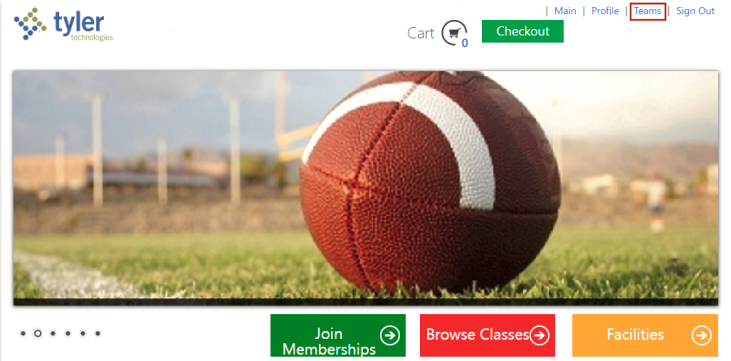
A registered coach who logs into the citizen portal will see a Teams link in the top-right corner of the page:
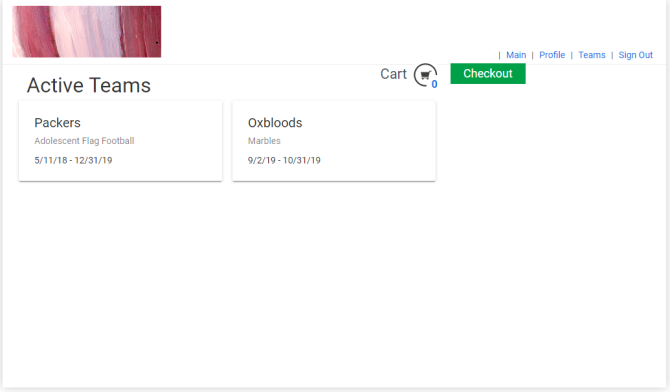
Clicking the link takes the coach to a page containing his or her roster, email messages and documents. If the coach has more than one team, active or inactive, the names, leagues and team start and end dates appear on individual cards on an intermediate page:
Clicking a card takes the coach to the page for that team:
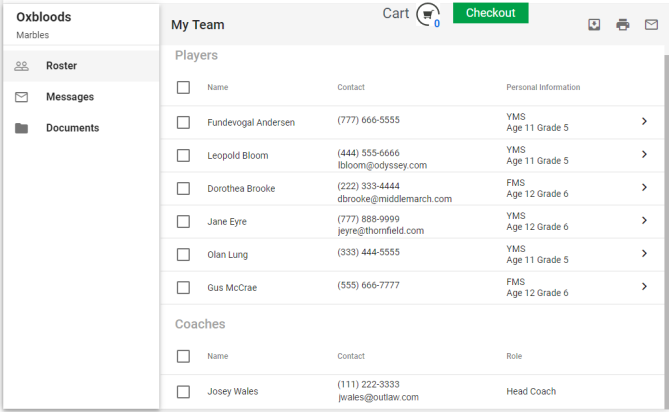
Each team page contains a left panel with the name of the team and league in the header and the following three tabs below it: Roster  , Messages
  and Documents
  . Selecting a tab loads the right panel with the corresponding information.
 Roster
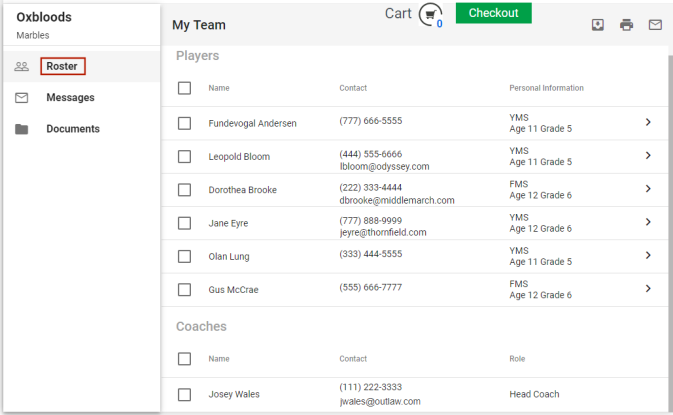
The Roster tab contains a Players grid and a Coaches grid. The Players grid contains the names of the players, their phone numbers, email addresses, schools, ages and grades. The Coaches grid contains the names of the coaches, their phone numbers, email addresses and roles.
Clicking the chevron  on the far-right side of a player's row displays additional information, such as gender, player status, notes and emergency contacts:
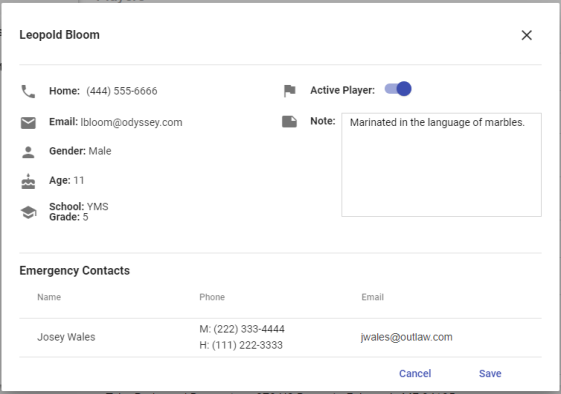
The player's status as active or inactive may be updated, and notes may be added and edited.
Export, Print and Email
On the right side of the My Team header are options to export  and print
  roster information and to email
  players and coaches:
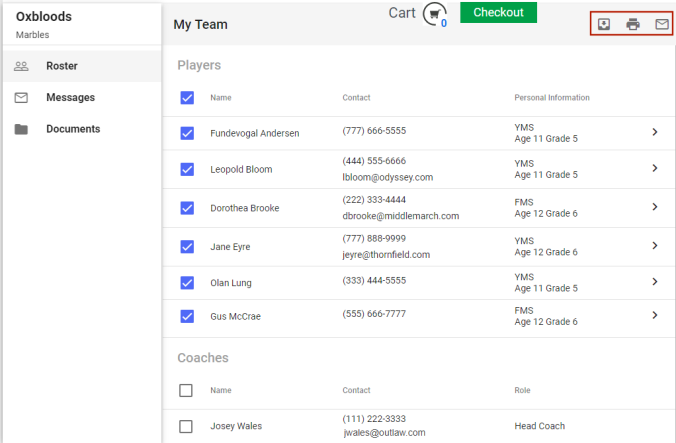
The check boxes are for selecting players and coaches to be included in the export, print or email. The check box in the grid header selects and clears all.
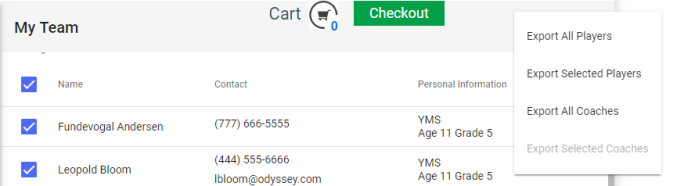
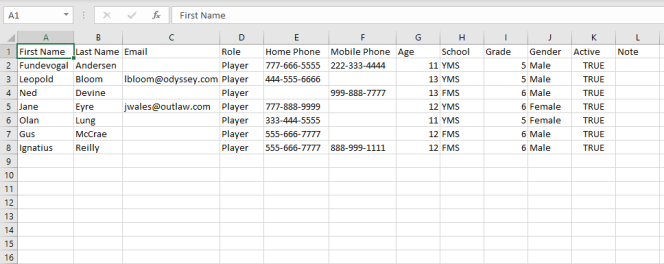
- Export opens a menu with options to import player or coach information to an Excel file:
-
Print
opens a menu with options to print information for all or selected players and coaches: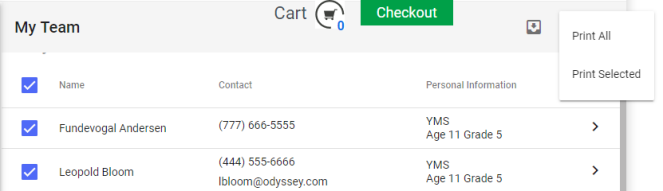
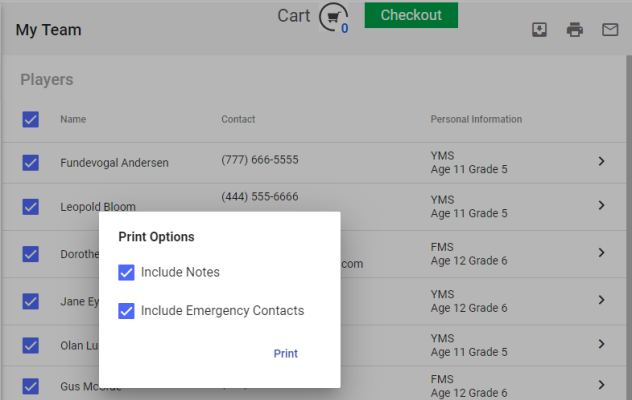
After making a selection, the coach has additional options to include emergency contacts and player notes in the printed output:
Clicking Print opens a preview of what will be printed:
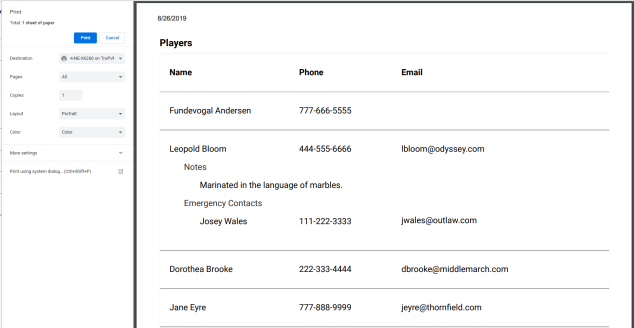
The left panel provides print settings and Print and Cancel buttons.
-
Email
opens a menu with options to email all or selected players and coaches: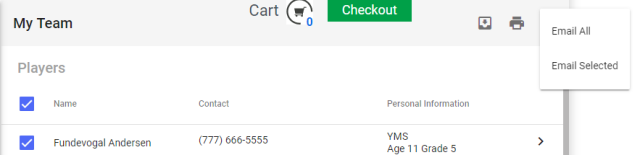
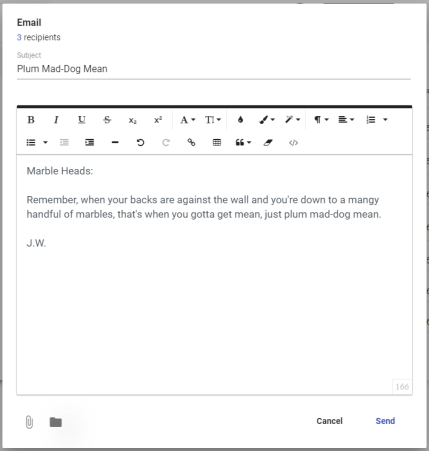
Once a selection is made, an email template opens, showing the number of recipients and providing a Subject field, body section and attachment and document links:
Messages
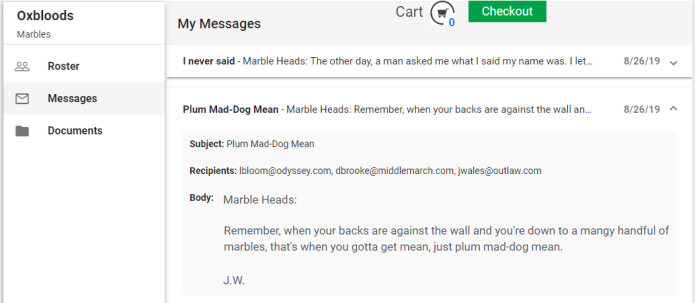
The Messages tab presents a list of all email messages that have been sent, including subjects, the first hundred characters of the body text and dates sent:
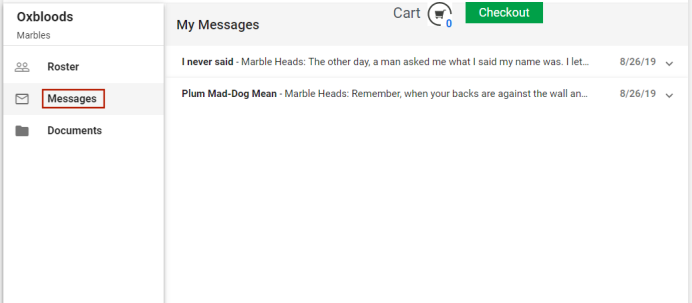
Expanding a message shows recipient email addresses, the complete body text and attachments:
Documents
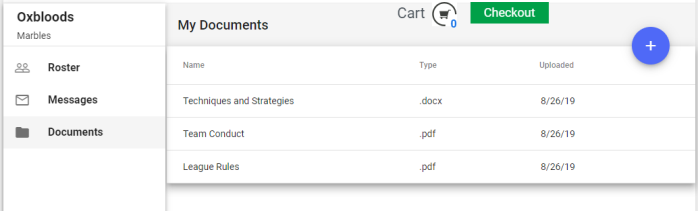
The Documents tab presents a list of documents that have been uploaded to Coach's Corner:
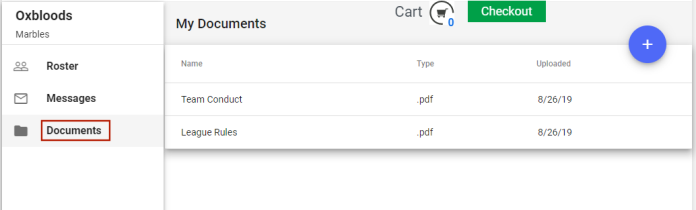
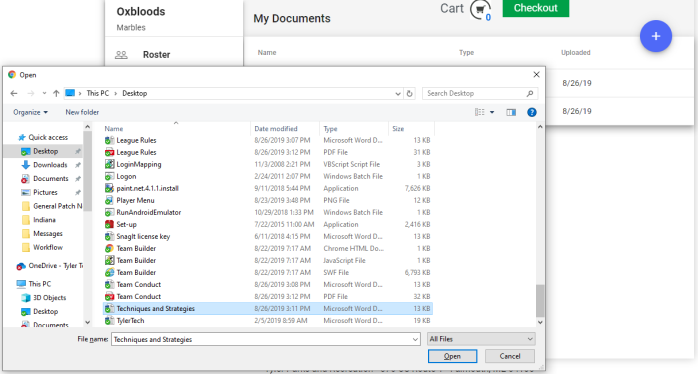
Documents may be uploaded by clicking the blue plus button  in the top-right corner of the right panel: